How to Add Schema Markup to Your Website (Without Touching Code)

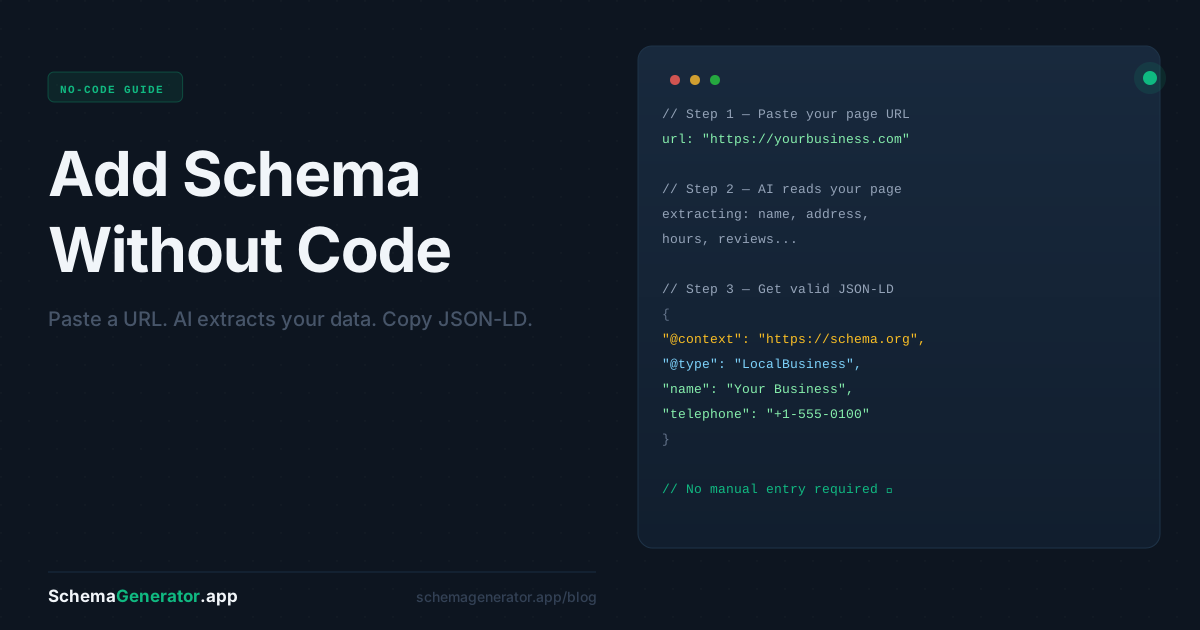
You've heard that schema markup can get you better visibility in Google search. Star ratings, opening hours, FAQ dropdowns right in the results — all powered by structured data.
The problem most people run into: every tutorial assumes you're comfortable editing raw HTML or digging into your site's <head> tag. Most marketers and business owners aren't. And they shouldn't have to be.
This guide skips the developer jargon. Here's how to add schema markup to your website — regardless of what platform you're on.
What you're actually adding (and where it goes)
Schema markup is a small block of JSON-LD code — it looks something like this:
{
 "@context": "https://schema.org",
 "@type": "Organization",
 "name": "Acme Studio",
 "url": "https://acmestudio.com"
}
This code lives in the <head> section of your page. Visitors never see it — it's purely a signal for search engines. Once it's there, Google can read your page's structured data and potentially display it as a rich result.
The two-step process is always the same: generate the code → paste it in the right place. The only thing that changes is where "the right place" is on your platform.
Step 1: Generate your schema markup
Before you touch your website, you need the code itself. The fastest way is to use SchemaGenerator.app:
- Paste your page URL into the generator
- The AI analyzes your page and identifies the right schema type (Organization, LocalBusiness, Article, etc.)
- Review the output — you can edit any field before copying
- Copy the JSON-LD block
The whole thing takes about 90 seconds. The output is validated against schema.org standards, so you're not guessing whether it's correct.
Now, where does it go?
WordPress
WordPress is the most flexible, and you have two main options.
Option A: Use a plugin (easiest)
Plugins like Rank Math or Yoast SEO have built-in schema support. If you're already using one of these for SEO, check their schema settings first — you may be able to configure it without any code at all.
Option B: Paste the code manually
If you want full control or your plugin doesn't cover your schema type:
- Go to Appearance → Theme File Editor (or use a child theme)
- Open
header.php - Paste your JSON-LD block just before the closing
</head>tag - Save
Alternatively, use a lightweight plugin like Insert Headers and Footers — paste your JSON-LD in the header section, no theme editing required.
Shopify
Shopify locks down theme editing slightly more, but it's still straightforward.
- Go to Online Store → Themes → Edit Code
- Open
theme.liquid(under Layout) - Find the closing
</head>tag - Paste your JSON-LD block just before it
- Save
For product pages specifically, you'll want to add schema to product.liquid instead, so it loads on every product page. Shopify also auto-generates some basic Product schema — worth checking Google's Rich Results Test first to see what's already there.
Webflow
Webflow makes this easy through page settings.
- Open the Pages panel and select the page you want
- Click the gear icon to open Page Settings
- Scroll to Custom Code → Head Code
- Paste your JSON-LD block
- Publish
To add schema to all pages at once, use Project Settings → Custom Code → Head Code instead. Useful for Organization or site-wide markup.
Squarespace
- Go to Settings → Advanced → Code Injection
- Paste your JSON-LD in the Header section
- Save
This applies the code site-wide. For page-specific schema on Squarespace, you'll need a Business plan or higher, which allows per-page code injection.
How to check it worked
Once you've added the code, verify it using Google's Rich Results Test (search for it — it's a free Google tool):
- Paste your page URL
- Run the test
- Google will confirm whether it detected valid structured data and what rich results you're eligible for
If it comes back clean, you're done. Google will pick it up the next time it crawls your page — usually within a few days to a couple of weeks.
The fast path: generate and add in under 5 minutes
To recap the full workflow:
- Go to SchemaGenerator.app and paste your URL
- Review and copy the generated JSON-LD
- Find your platform's header code section (see above)
- Paste and save
- Verify with Google's Rich Results Test
That's genuinely it. No developer needed, no technical background required. Schema markup is one of those things that sounds intimidating until you've done it once — and then it takes about three minutes.